Programme & Fenster
Programs & windows
Die Fenster deiner Programme bekommen die Botanika-Farben – Knöpfe, Menüs, Listen und Felder.
The windows of your programs get the Botanika colours – buttons, menus, lists and fields.
Aktuelle Fassung: 1.0
Rikus Themen zieht deinem ganzen Rechner ein neues Kleid an: Programme, Fensterrahmen, Symbole, Mauszeiger, Leiste, Meldungen, Terminal-Farben und Hintergrund – in einem Rutsch, ohne Terminal. Dein bisheriges Aussehen wird vorher gesichert und kommt mit einem Knopf genau so zurück.
Current version: 1.0
Rikus Themes dresses your whole computer in something new: programs, window borders, icons, mouse pointer, panel, notifications, terminal colours and wallpaper – in one go, without a terminal. Your current look is backed up first and comes back exactly as it was with one button.
Stell dir vor, dein Rechner zieht sich um. Von Hand müsstest du dafür an vielen Stellen einzeln suchen: hier die Farben der Fenster, dort die Symbole, woanders den Mauszeiger, die Leiste und das Terminal – und jede Oberfläche versteckt diese Stellen woanders. Rikus Themen schaut selbst nach, was auf deinem Rechner läuft, und legt Botanika überall dorthin, wo es hingehört. Deine alten Sachen hängt es vorher ordentlich in den Schrank. Ein Knopf, und du trägst wieder das Alte.
Imagine your computer changing its clothes. By hand you would have to hunt around in many places: the colours of the windows here, the icons there, the mouse pointer, the panel and the terminal somewhere else – and every desktop hides these places somewhere different. Rikus Themes finds out by itself what runs on your computer and puts Botanika everywhere it belongs. It hangs your old things neatly in the wardrobe first. One button, and you are wearing the old ones again.
Das Thema
The theme
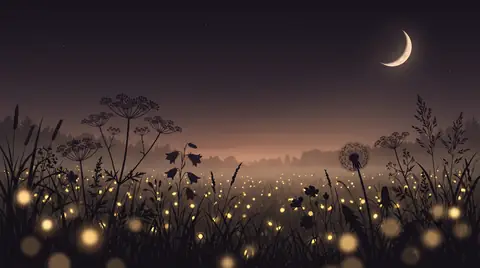
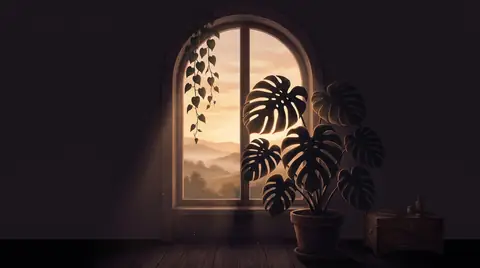
Botanika ist das Rikus-Thema: dunkle Nachtfarben, warmes Creme, Lehmrot, Salbeigrün und ein Hauch Gold – dazu sieben Bilder, von der Wiese im Mondlicht bis zum Abendrot.
Botanika is the Rikus theme: dark night colours, warm cream, clay red, sage green and a touch of gold – with seven pictures, from a meadow in moonlight to a red evening sky.

Auf einen Blick
At a glance
Zehn Teile, jedes für sich. Welche davon es auf deinem Rechner gibt, hängt von der Oberfläche ab – Rikus Themen zeigt es dir vorher, und bei jedem Teil entscheidest du selbst, ob es mitmacht.
Ten parts, each on its own. Which of them exist on your computer depends on the desktop – Rikus Themes shows you beforehand, and for each part you decide yourself whether it takes part.
Die Fenster deiner Programme bekommen die Botanika-Farben – Knöpfe, Menüs, Listen und Felder.
The windows of your programs get the Botanika colours – buttons, menus, lists and fields.
Die Leiste oben an jedem Fenster, mit den Knöpfen zum Schließen, Verkleinern und Vergrößern.
The bar at the top of every window, with the buttons to close, minimise and maximise.
Ein eigener Symbolsatz in Botanika-Farben für Ordner und Programme.
An icon set of its own in Botanika colours for folders and programs.
Ein passender Mauszeiger – normal, groß oder sehr groß.
A matching mouse pointer – normal, large or very large.
Die Leiste am Bildschirmrand bekommt Botanika-Farben, der Startknopf – wo es einen gibt – einen kleinen Spross.
The panel at the edge of the screen gets Botanika colours, the start button – where there is one – a little sprout.
Die kleinen Nachrichtenfenster, die kurz am Bildschirmrand erscheinen, kommen im selben Stil.
The little message windows that pop up at the edge of the screen come in the same style.
Dein Terminal bekommt die Botanika-Farben. Rikus Themen kennt 27 Terminal-Programme.
Your terminal gets the Botanika colours. Rikus Themes knows 27 terminal programs.
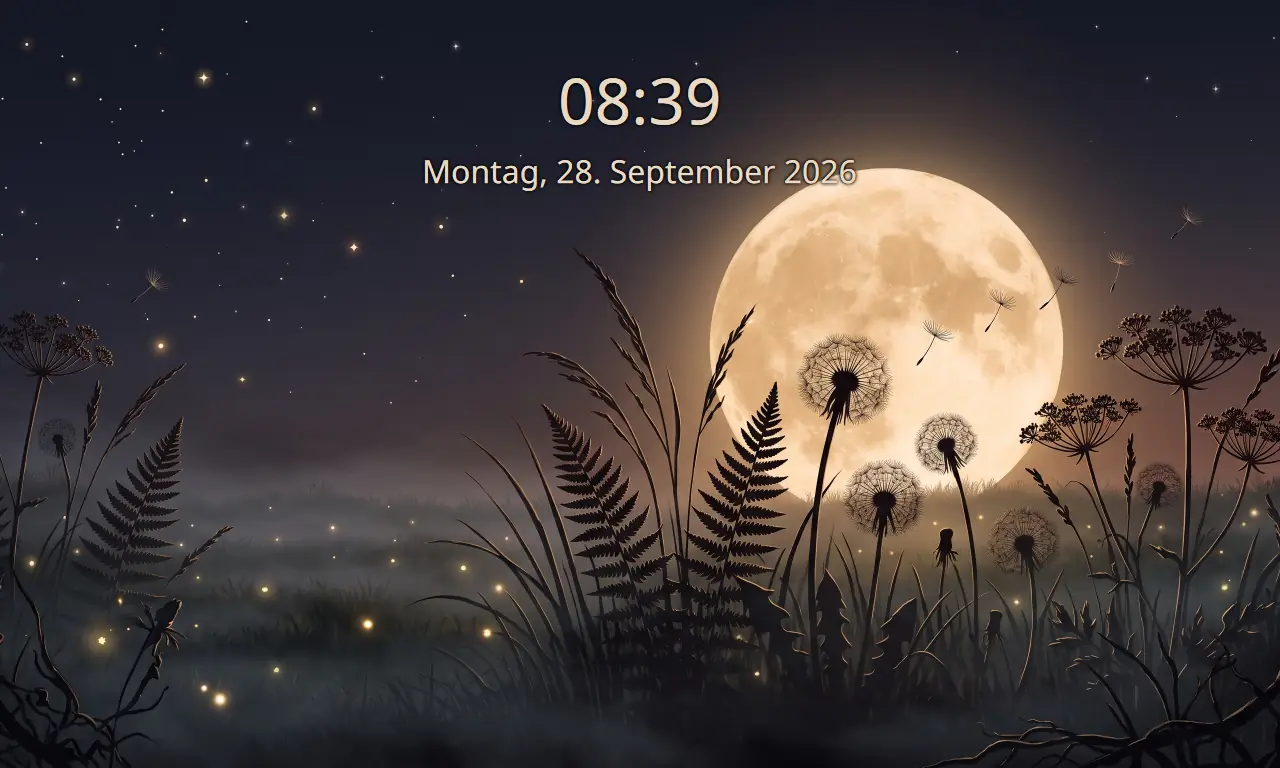
Sieben Botanika-Bilder zur Wahl – oder ein eigenes. Unter KDE Plasma auch auf dem Sperrbildschirm.
Seven Botanika pictures to choose from – or one of your own. On KDE Plasma also on the lock screen.
Programme, die mit Qt gebaut sind – etwa unter KDE Plasma und LXQt –, bekommen dieselben Farben.
Programs built with Qt – on KDE Plasma and LXQt, for example – get the same colours.
Oben im Fensterkopf von Firefox und Thunderbird erscheint das gewählte Bild.
The chosen picture appears at the top of the Firefox and Thunderbird windows.
Schritt für Schritt
Step by step
Das Fenster führt dich in drei Schritten. Oben siehst du immer, wo du gerade bist: Erkennen, Aussuchen, Einspielen.
The window guides you in three steps. At the top you always see where you are: Detect, Choose, Apply.
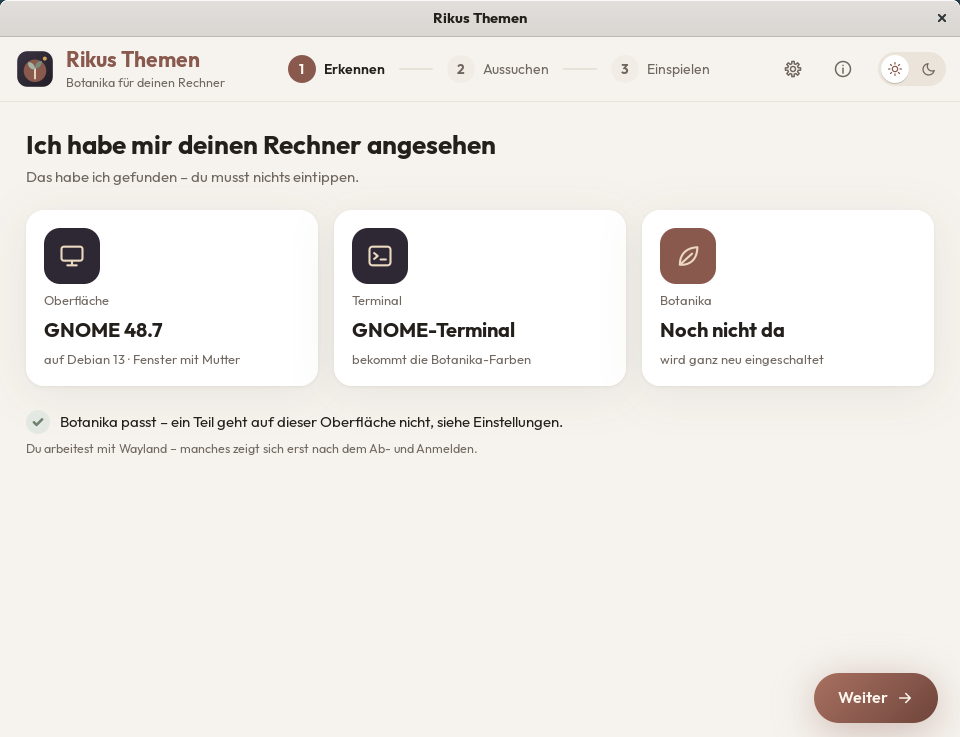
Beim Start sieht sich Rikus Themen deinen Rechner an. Du musst nichts eintippen. Drei Karten zeigen, was es gefunden hat:
When it starts, Rikus Themes looks at your computer. You do not need to type anything. Three cards show what it found:
Darunter steht in einem Satz, ob alles passt. Geht auf deiner Oberfläche ein Teil nicht, steht dort, wie viele – die Einzelheiten zeigt das Zahnrad. Kennt Rikus Themen eine Oberfläche nicht genau, schaltet es ein, was überall geht. Und wer mit Wayland arbeitet, bekommt gleich den Hinweis, dass sich manches erst nach dem Ab- und Anmelden zeigt.
Below, one sentence tells you whether everything fits. If a part does not work on your desktop, it says how many – the gear shows the details. If Rikus Themes does not know a desktop well, it switches on what works everywhere. And if you use Wayland, you are told right away that some things only show after logging out and in again.
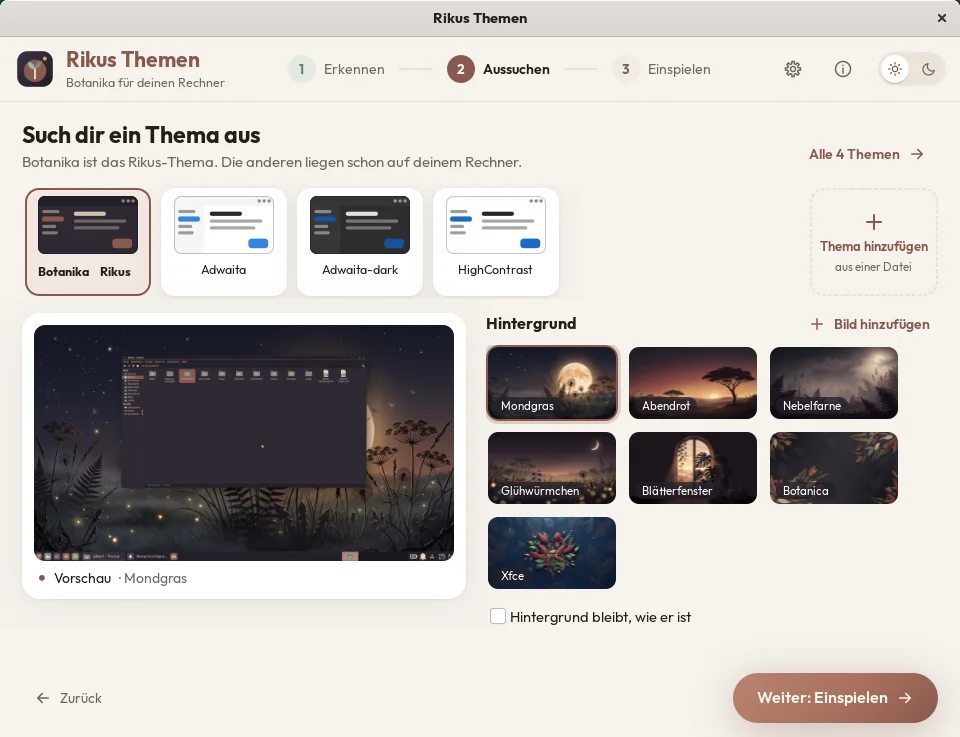
Oben steht die Themen-Leiste. Ganz vorne Botanika, das Rikus-Thema, daneben alle Themen, die schon auf deinem Rechner liegen. „Alle … Themen“ öffnet die ganze Liste mit einem Suchfeld. Mehr dazu weiter unten unter „Andere Themen“.
At the top is the theme bar. Botanika, the Rikus theme, comes first, followed by all the themes already on your computer. “All … themes” opens the full list with a search field. More about this below under “Other themes”.
Darunter suchst du den Hintergrund aus, links siehst du die Vorschau. Mit „Bild hinzufügen“ nimmst du ein eigenes Bild dazu. Oder du hakst „Hintergrund bleibt, wie er ist“ an – dann bleibt dein jetziges Bild, wo es ist.
Below, you pick the wallpaper, and on the left you see the preview. “Add a picture” adds one of your own. Or tick “Keep the current wallpaper” – then your present picture stays where it is.
Jetzt siehst du alle Teile, die es auf deiner Oberfläche gibt – jedes mit einem Häkchen. Der Schalter „Alles“ nimmt alle auf einmal an oder ab. Ohne Häkchen bleibt ein Teil, wie er ist. Was auf deiner Oberfläche nicht geht, ist ausgegraut, und darunter steht, warum.
Now you see every part that exists on your desktop – each with a tick box. The “Everything” switch ticks or unticks them all at once. Unticked parts stay as they are. Whatever does not work on your desktop is greyed out, with the reason underneath.
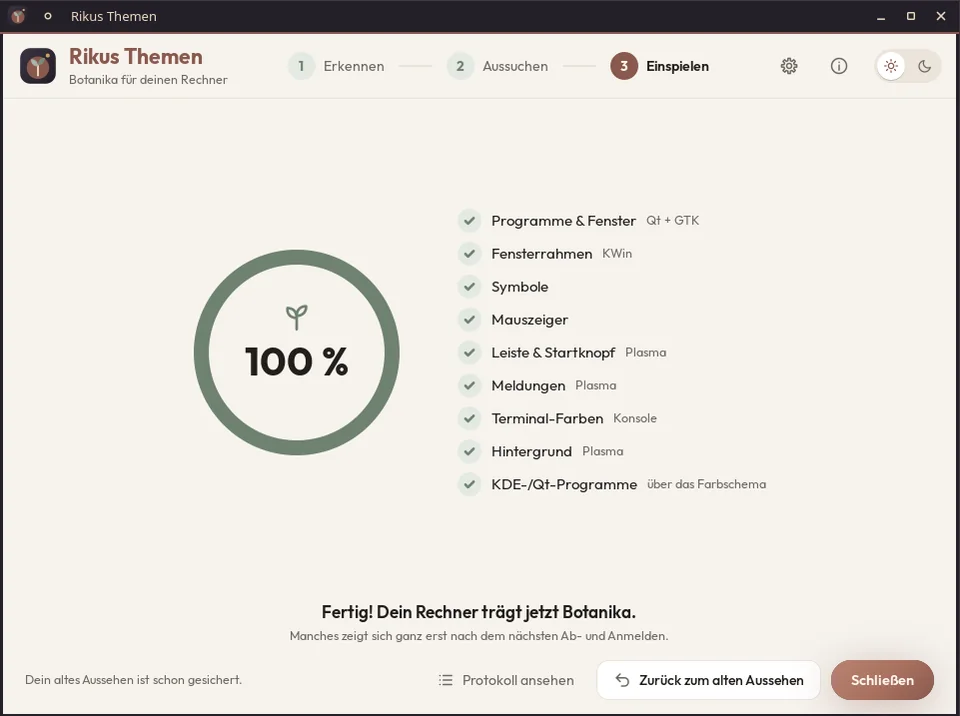
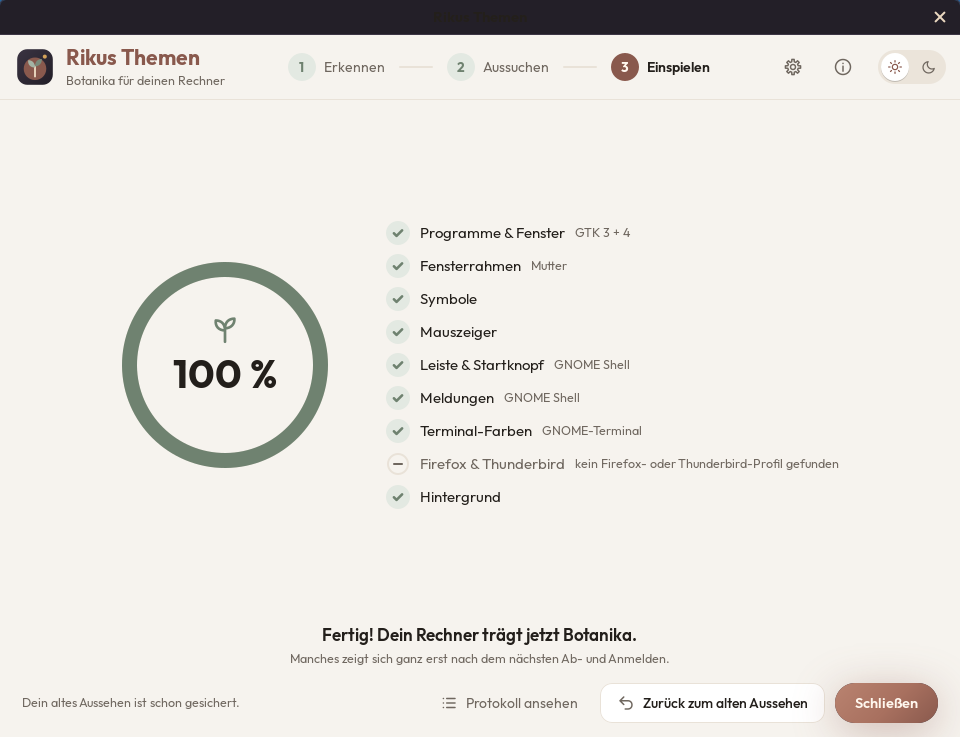
Ein Klick auf „Jetzt einspielen“, und der Ring füllt sich bis 100 %. Neben jedem Teil erscheint ein Haken, und am Ende steht: „Fertig! Dein Rechner trägt jetzt Botanika.“ Manches zeigt sich ganz erst nach dem nächsten Ab- und Anmelden – auch das steht dort.
One click on “Apply now”, and the ring fills up to 100 %. A tick appears next to every part, and at the end it says: “Done! Your computer now wears Botanika.” Some things show completely only after the next log out and in – it tells you that too.
Hat ein Teil nicht geklappt, steht es in der Liste, und die anderen Teile laufen trotzdem weiter. Unter „Protokoll ansehen“ steht genau, was gemacht wurde.
If a part did not work, the list says so, and the other parts carry on regardless. “Show log” tells you exactly what was done.
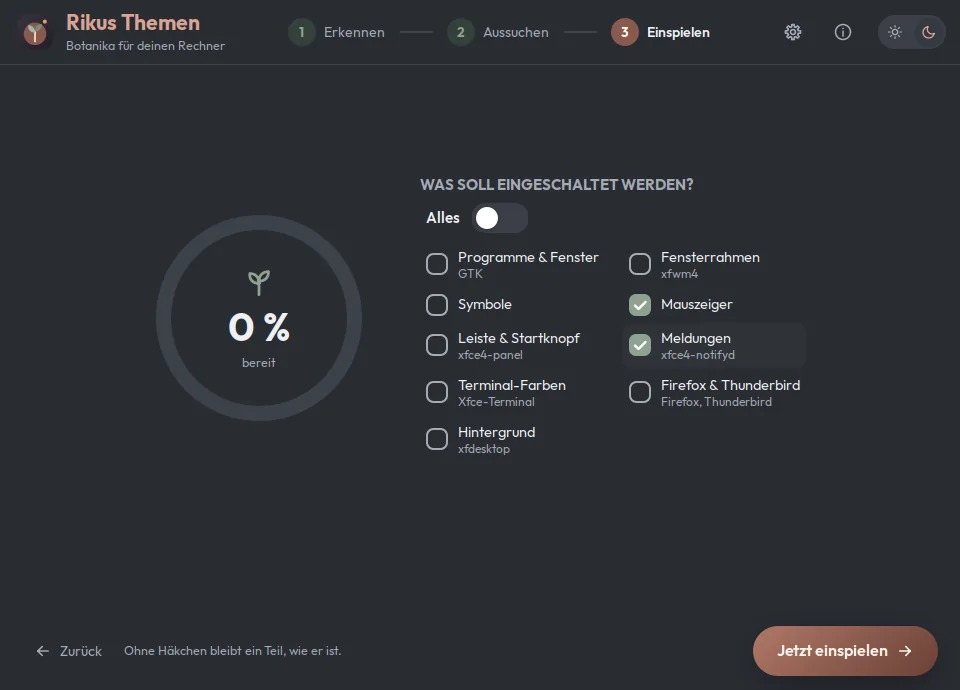
Dieselben Häkchen wie auf Seite 3, dazu die Größe des Mauszeigers: normal, groß oder sehr groß. Unter „Profi-Einstellungen“ steht „Fremde Programmbilder umfärben“: Programme mit eigenen Bildern bekommen eine Kopie in Botanika-Farben. Das ist von Anfang an eingeschaltet.
The same ticks as on page 3, plus the size of the mouse pointer: normal, large or very large. Under “Expert settings” you find “Recolour icons of other programs”: programs with their own pictures get a copy in Botanika colours. It is switched on from the start.
Was Rikus Themen tut, welche Fassung du hast, und der Weg zum Protokoll.
What Rikus Themes does, which version you have, and the way to the log.
Das Fenster von Rikus Themen selbst hell oder dunkel – wie es dir gefällt.
The Rikus Themes window itself light or dark – as you like it.
Sicher ausprobieren
Try it safely
Bevor Rikus Themen irgendetwas umstellt, merkt es sich dein bisheriges Aussehen. Unten im Fenster steht dann: „Dein altes Aussehen ist schon gesichert.“
Before Rikus Themes changes anything, it remembers your current look. At the bottom of the window it then says: “Your old look is already backed up.”
Gefällt dir Botanika nicht mehr, drückst du „Zurück zum alten Aussehen“ und bestätigst mit „Ja, zurück“. Dann kommt alles so wieder, wie es vorher war. Den Knopf gibt es auch gleich auf der ersten Seite, sobald eine Sicherung da ist – du musst also nicht erst alle Schritte durchgehen.
If you no longer like Botanika, press “Back to the old look” and confirm with “Yes, go back”. Then everything returns just as it was before. The button is also right there on the first page as soon as a backup exists – so you do not have to go through all the steps first.
Wechselst du von einem Thema zu einem anderen, kommt ebenfalls zuerst dein altes Aussehen zurück – erst dann wird das neue eingespielt. So stapelt sich nichts übereinander.
If you switch from one theme to another, your old look also comes back first – only then is the new one applied. That way nothing piles up on top of each other.
In jeder Test-Maschine nachgemessen: Nach „Zurück“ standen alle Einstellungen wieder auf ihren alten Werten.
Measured on every test machine: after “Back”, every setting was back at its old value.
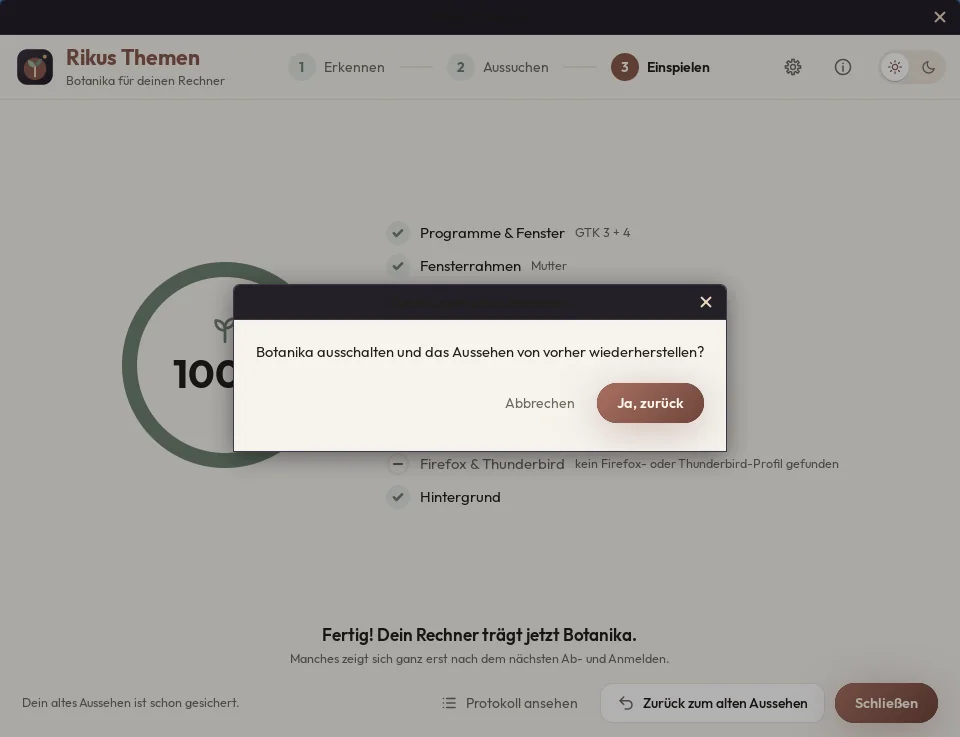
Botanika ist das Rikus-Thema. Rikus Themen spielt aber auch jedes andere Thema ein, das schon auf deinem Rechner liegt – zum Beispiel Adwaita-dark, Arc-Dark oder Breeze-Dark. Du wählst es in der Themen-Leiste aus, so wie Botanika.
Botanika is the Rikus theme. But Rikus Themes also applies any other theme that is already on your computer – Adwaita-dark, Arc-Dark or Breeze-Dark, for example. You pick it in the theme bar, just like Botanika.
Ein Thema bringt immer das Aussehen der Programme mit, je nach Oberfläche und Thema auch Fensterrahmen, Leiste und Meldungen. Symbole, Mauszeiger und Hintergrund suchst du selbst dazu aus – oder lässt sie, wie sie sind. Terminal-Farben, Firefox & Thunderbird und der Spross im Startknopf gibt es nur bei Botanika.
A theme always brings the look of the programs – depending on the desktop and the theme, also window borders, panel and notifications. You pick the icons, mouse pointer and wallpaper to go with it – or leave them as they are. Terminal colours, Firefox & Thunderbird and the sprout in the start button come with Botanika only.
Ein Thema aus dem Internet holst du mit „Thema hinzufügen“. Das öffnet deinen Download-Ordner: Datei auswählen – .zip, .tar.gz oder .tar.xz, höchstens 100 MB –, und das Thema steht sofort in der Leiste. Eine Datei, die außerhalb ihres Ordners schreiben würde, nimmt Rikus Themen aus Sicherheit nicht an.
You fetch a theme from the internet with “Add a theme”. It opens your downloads folder: choose the file – .zip, .tar.gz or .tar.xz, 100 MB at most – and the theme appears in the bar at once. A file that would write outside its own folder is refused, for safety.
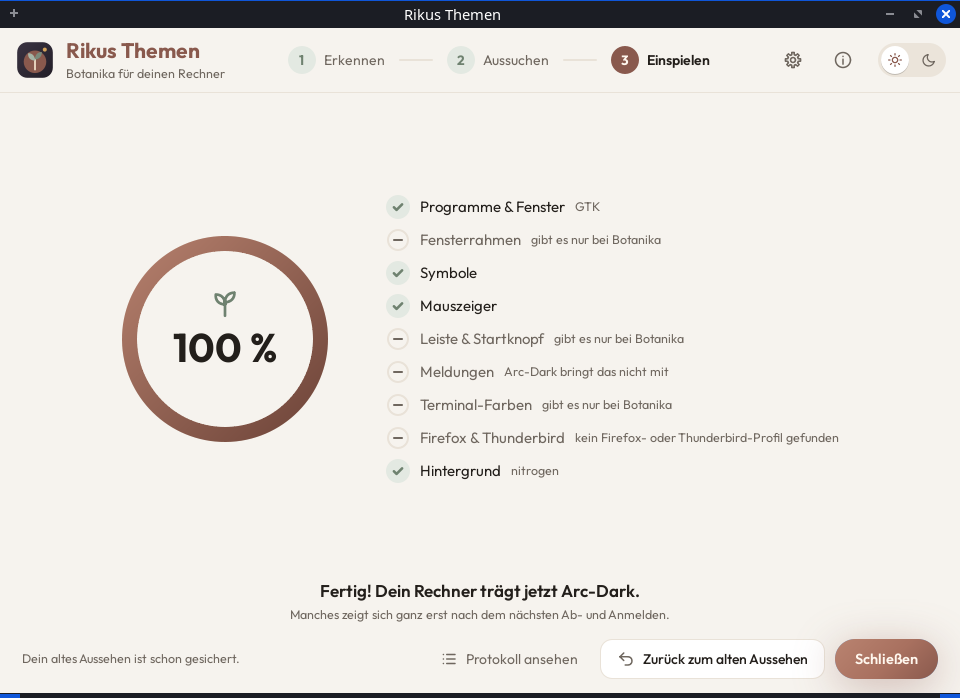
Zu jedem Thema kannst du eigene Bilder dazulegen – ein Urlaubsfoto oder was dir gefällt. „Bild hinzufügen“ öffnet deinen Bilder-Ordner. JPG und PNG gehen immer, andere Bildarten, wenn dein Rechner sie öffnen kann; höchstens 50 MB. Ein Handyfoto, das quer gespeichert ist, wird richtig herum gedreht.
You can add your own pictures to every theme – a holiday photo or whatever you like. “Add a picture” opens your pictures folder. JPG and PNG always work, other kinds if your computer can open them; 50 MB at most. A phone photo that was saved sideways is turned the right way up.
Rikus Themen legt eine Kopie an – dein Original bleibt, wo es ist. Jedes Thema hat seine eigene Sammlung. Das kleine Kreuz an der Kachel nimmt ein Bild wieder heraus, vorher kommt eine Rückfrage. Das Bild, das gerade eingespielt ist, lässt sich erst entfernen, wenn ein anderes eingespielt wurde.
Rikus Themes makes a copy – your original stays where it is. Every theme has a collection of its own. The little cross on the tile takes a picture out again, after asking you first. The picture that is applied right now can only be removed once another one has been applied.
Bilder
Pictures
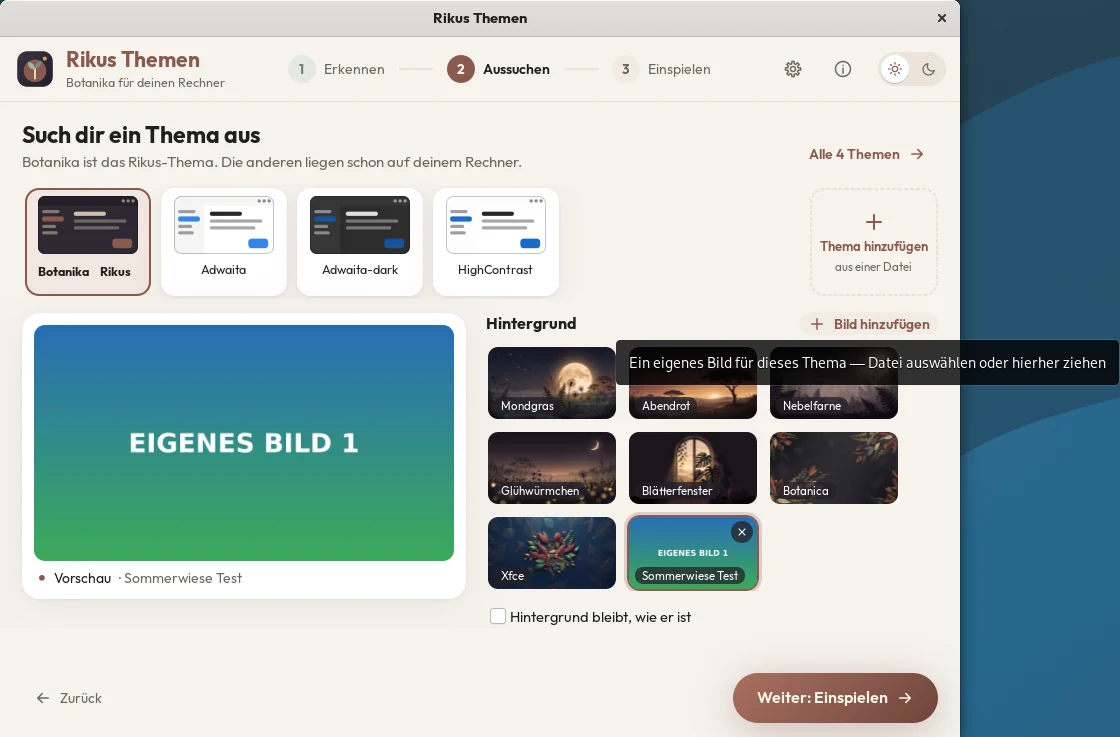
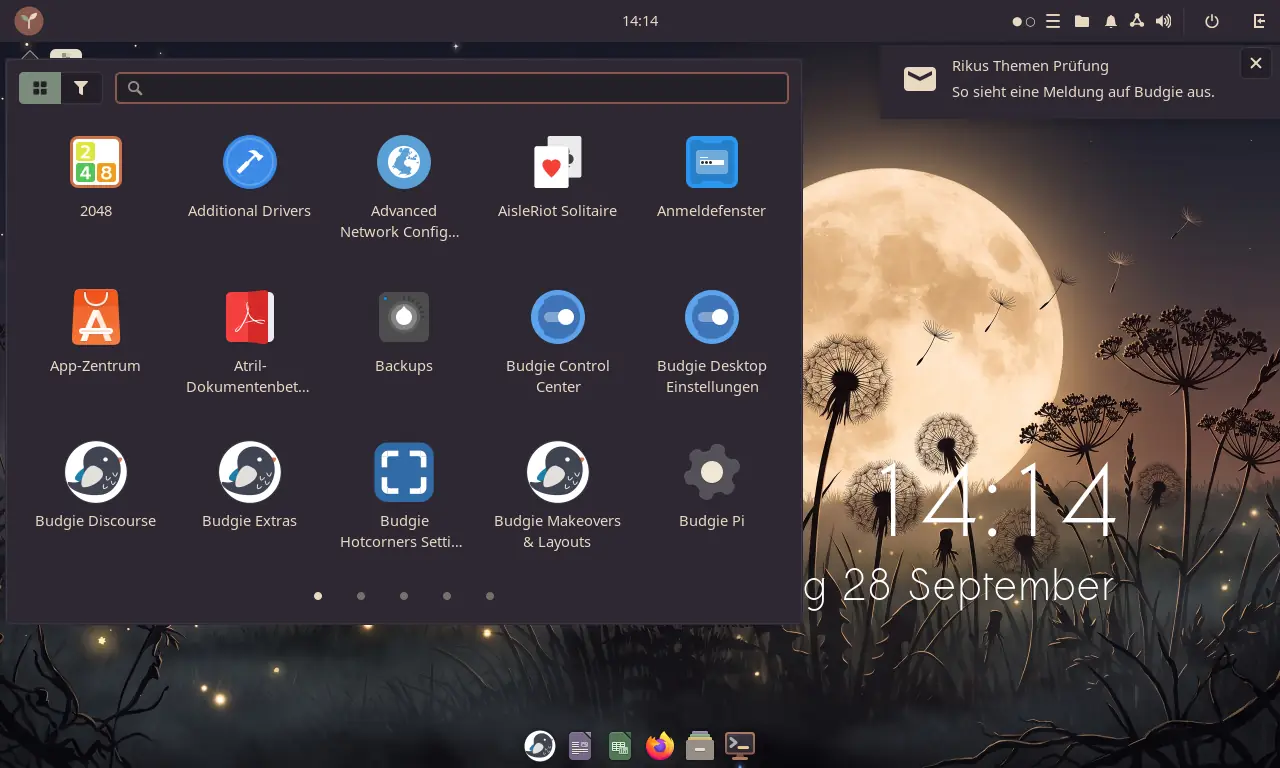
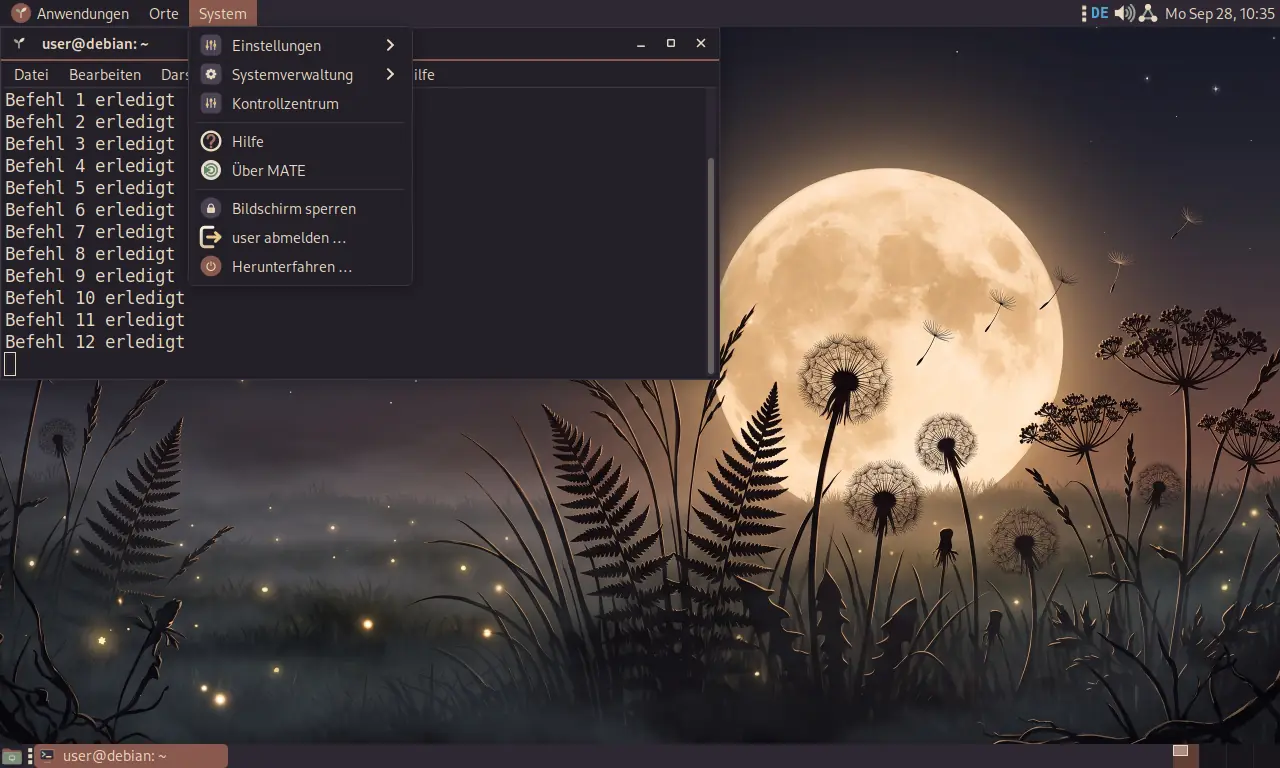
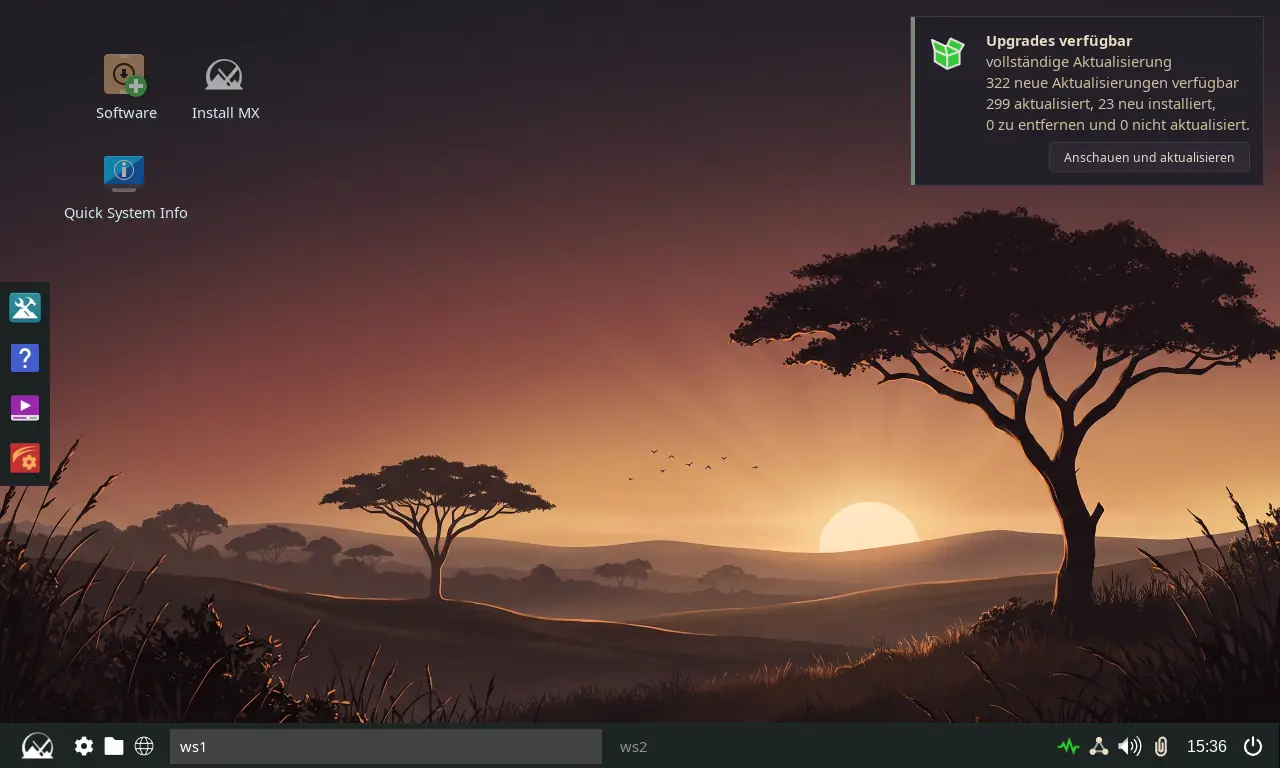
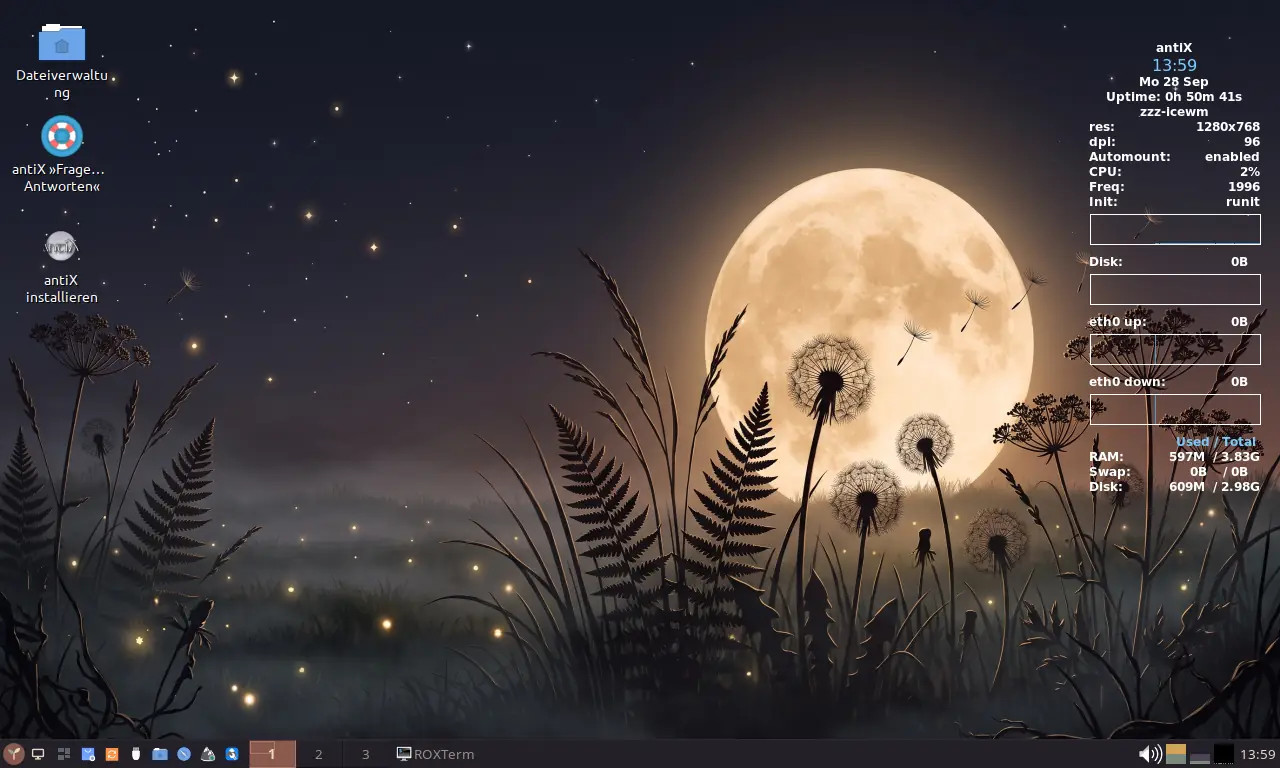
Bilder aus den Test-Maschinen, so wie sie auf dem Bildschirm standen.
Pictures from the test machines, just as they appeared on the screen.
Wo es läuft
Where it runs
Rikus Themen erkennt selbst, welche Oberfläche läuft, und stellt genau die Stellen um, die diese Oberfläche benutzt. Bei einer Oberfläche, die es nicht genau kennt, schaltet es ein, was überall geht.
Rikus Themes recognises by itself which desktop is running and changes exactly the places this desktop uses. On a desktop it does not know well, it switches on what works everywhere.
Geprüft
Tested
Geprüft wurde jedes Mal der ganze Weg: Rikus Themen über das Startmenü öffnen, jeden Knopf mit der Maus drücken, einspielen, das Ergebnis ansehen – danach „Zurück“ und nachmessen, ob wieder alles wie vorher ist. Eine Test-Maschine ist ein Rechner im Rechner: Das System läuft in einem Fenster, sichtbar auf dem Bildschirm.
Each time the whole way was tested: open Rikus Themes from the start menu, press every button with the mouse, apply, look at the result – then “Back” and measure whether everything is as before again. A test machine is a computer inside a computer: the system runs in a window, visible on the screen.
| OberflächeDesktop | SystemSystem | WoWhere | Botanika | Andere ThemenOther themes | Eigene BilderOwn pictures |
|---|---|---|---|---|---|
| Xfce | MX Linux 25.3 | echter Rechnerreal computer | ✓ | ✓ | ✓ |
| Cinnamon | Linux Mint 22.3 | echter Rechnerreal computer | ✓ | ✓ | – |
| GNOME 48 (Wayland) | Debian 13 | echter Rechnerreal computer | ✓ | – | – |
| GNOME 48 (Wayland) | Debian 13 | Test-Maschinetest machine | ✓ | ✓ | ✓ |
| KDE Plasma 6.3 (Wayland) | Debian 13 | Test-Maschinetest machine | ✓ | ✓ | ✓ |
| MATE 1.26 | Debian 13 | Test-Maschinetest machine | ✓ | ✓ | ✓ |
| LXQt 2.1 | Debian 13 | Test-Maschinetest machine | ✓ | ✓ | ✓ |
| LXDE | Debian 13 | Test-Maschinetest machine | ✓ | ✓ | ✓ |
| Xfce 4.20 | Debian 13 | Test-Maschinetest machine | ✓ | – | – |
| Cinnamon | Linux Mint 22.3 (englisch)Linux Mint 22.3 (English) | Test-Maschinetest machine | ✓ | ✓ | ✓ |
| Budgie | Ubuntu Budgie 24.04 | Test-Maschinetest machine | ✓ | ✓ | – |
| Fluxbox | MX Linux 25.2 | Test-Maschinetest machine | ✓ | ✓ | ✓ |
| IceWM | antiX 26 | Test-Maschinetest machine | ✓ | ✓ | ✓ |
| JWM und FluxboxJWM and Fluxbox | antiX 26 | Test-Maschinetest machine | ✓ | – | – |
✓ geprüft · – nicht geprüft
✓ tested · – not tested
Kostenlos
Free of charge
Drei Schritte, kein Terminal nötig.
Three steps, no terminal needed.
Name, E-Mail und Land – mehr wird nicht gefragt.
Name, e-mail and country – nothing else is asked.
Du bekommst sofort eine Mail mit deinem persönlichen Code und dem Link zum Herunterladen. Schau auch im Spam-Ordner nach.
You get an e-mail straight away with your personal code and the download link. Check the spam folder too.
Installieren und starten. Beim allerersten Start fragt Rikus Themen nach dem Code. Eintippen – fertig. Danach fragt es nie wieder.
Install and start it. At the very first start Rikus Themes asks for the code. Type it in – done. It never asks again.
Danach findest du Rikus Themen im Startmenü, meist bei den Einstellungen.
Afterwards you find Rikus Themes in the start menu, usually under Settings.
Damit ich weiß, wie viele Menschen meine Programme benutzen, und damit meine Arbeit nicht einfach kopiert und unter fremdem Namen weitergegeben wird. Dein Code gilt auf beliebig vielen Rechnern – auch nach einer Neuinstallation.
So that I know how many people use my programs, and so my work is not simply copied and passed on under somebody else’s name. Your code works on as many machines as you like – even after a fresh install.
Sie bleiben auf meinem eigenen Rechner hier bei mir zu Hause. Keine Werbung, keine Weitergabe an Dritte, kein Konzern dazwischen. Du kannst jederzeit schreiben, dass ich sie lösche.
They stay on my own machine here at my home. No ads, nothing passed on to anyone else, no company in between. You can write at any time and ask me to delete them.
Für Geübte
For experienced users
Einmal eintragen – und jede neue Fassung kommt von selbst.
Set it up once – every new version then arrives on its own.
Statt die Datei für jede neue Fassung wieder von Hand zu holen, geht es auch anders: Rikus Themen liegt in einer eigenen Paketquelle. Das ist dieselbe Technik, mit der dein System auch alle anderen Programme aktuell hält. Du trägst sie einmal ein – danach erscheint jede neue Fassung ganz normal bei deinen Systemaktualisierungen.
Instead of fetching the file by hand again for every new version, there is another way: Rikus Themes is available from our own package source. It is the same technique your system uses to keep all other programs current. You add it once – after that every new version simply shows up with your normal system updates.
Schritt 1 — den Schlüssel holen. Damit erkennt dein Rechner, dass die Pakete wirklich von uns kommen und unterwegs niemand etwas verändert hat. Auf frisch installierten Rechnern fehlt oft das kleine Programm curl – der Befehl holt es gleich mit:
Step 1 — get the key. With it your computer can tell that the packages really come from us and that nobody changed anything on the way. Freshly installed computers often lack the small program curl – the command installs it first:
sudo apt update && sudo apt install -y curl && sudo install -d /etc/apt/keyrings && sudo curl -fsSL https://apt.rikus.info/rikus-apt.gpg -o /etc/apt/keyrings/rikus.gpgSchritt 2 — die Quelle eintragen. Eine einzige Zeile, die deinem System sagt, wo es nachschauen soll:
Step 2 — add the source. One single line telling your system where to look:
echo "deb [signed-by=/etc/apt/keyrings/rikus.gpg] https://apt.rikus.info stable main" | sudo tee /etc/apt/sources.list.d/rikus.listSchritt 3 — installieren.
Step 3 — install.
sudo apt update && sudo apt install rikus-themesDanach startest du Rikus Themen aus dem Startmenü. Beim ersten Start fragt es einmal nach deinem persönlichen Code – den bekommst du kostenlos über den Knopf „Kostenlos anfordern“ auf dieser Seite.
Then start Rikus Themes from the start menu. At the first start it asks once for your personal code – you get it free of charge with the “Get it free” button on this page.
Du willst die Quelle wieder loswerden? Ein Befehl, und alles ist wie vorher – das Programm selbst bleibt installiert:
Want to remove the source again? One command and everything is as before – the program itself stays installed:
sudo rm /etc/apt/sources.list.d/rikus.list /etc/apt/keyrings/rikus.gpg && sudo apt updateDas Paket wurde auf Debian 12 und 13, Ubuntu 22.04 und 24.04, Linux Mint 22 und MX Linux 25 installiert.
The package was installed on Debian 12 and 13, Ubuntu 22.04 and 24.04, Linux Mint 22 and MX Linux 25.
Alles andere, was Rikus Themen braucht, holt dein System beim Installieren von selbst dazu.
Everything else Rikus Themes needs is fetched by your system automatically during installation.
Rikus Themen ändert nur dein eigenes Benutzerkonto. Andere Benutzer auf demselben Rechner behalten ihr Aussehen.
Rikus Themes only changes your own user account. Other users on the same computer keep their look.
Schreib mir. Ich lese jede Nachricht selbst und antworte auch. Gerade die Kritik hilft mir – fast jede Verbesserung kam bisher von Benutzern.
Write to me. I read every message myself and I do reply. Criticism helps most – nearly every improvement so far came from a user.
Mir schreiben Write to meEinmal anmelden — der Code kommt sofort per E-Mail.Sign up once — the code arrives by e-mail at once.
Dieses Programm kostet nichts und wird auch nie etwas kosten. Ich baue es in meiner Freizeit. Wenn es dir Arbeit erspart hat und du magst, freue ich mich über einen Kaffee — und wenn nicht, ist das genauso in Ordnung.This program is free and always will be. I build it in my spare time. If it saved you some work and you feel like it, I would be glad about a coffee — and if not, that is just as fine.
☕ Einen Kaffee spendieren☕ Buy me a coffee
Freiwillig · über PayPal · jeder Betrag hilftEntirely voluntary · via PayPal · any amount helps
📋 Was sich geändert hat📋 What has changed·✉️ Neues per E-Mail bekommen✉️ Get news by e-mail